
A step-by-step guide to integrating Oracle SQLcl with CyberArk PSM, configuring connection parameters, and troubleshooting Java and AppLocker issues.
Recently, I was working on a request to make Oracle SQLcl available through CyberArk Privileged Session Manager (PSM).
Since CyberArk already provides a connection component for SQLPlus, my first thought was simple: why not use the existing SQLPlus component as a starting point?
That is exactly what I did.
However, SQLcl is Java-based, and getting it to run inside a hardened PSM environment introduced a few interesting challenges.
In this article, I’ll walk you through my configuration and show you how I investigated an AppLocker issue that caused SQLcl to open for a few seconds and then close.
Step 1 — Prepare Oracle SQLcl on the PSM Server
First, download Oracle SQLcl from Oracle and extract it to a directory on your PSM server.
In my environment, I used:
D:\oracle\sqlcl
The executable is located at:
D:\oracle\sqlcl\bin\sql.exe
SQLcl also requires a compatible Java runtime, so make sure Java is installed and available to the application.
Before configuring anything in CyberArk, verify that SQLcl starts directly on the PSM server:
D:\oracle\sqlcl\bin\sql.exe
If it opens successfully, you can proceed.
If not, troubleshoot the SQLcl and Java installation first.
Tip: Check JAVA_HOME, PATH, and ORACLE_HOME. In my environment, I found that an existing ORACLE_HOME value pointing to an older Oracle client affected SQLcl startup during manual testing.
Step 2 — Create the PSM-SQLcl Connection Component
Log in to PVWA and navigate to:
Administration → Configuration Options → Connection Components
Find the existing PSM-SQLPlus connection component.
Use its configuration as a reference and create a separate connection component named:
PSM-SQLcl
I kept the existing SQLPlus component unchanged and modified only the SQLcl-specific configuration.
Under Target Settings, configure the following properties:
| Parameter | Value |
|---|---|
| Protocol | SQLNet |
| ClientInvokeType | CommandLine |
| ClientDispatcher | NA |
| ConnectionComponentInitTimeout | 200000 |
For the ClientApp property, use the SQLPlus parameter format and replace the executable path with SQLcl:
"D:\oracle\sqlcl\bin\sql.exe" "{UserName}/{Password}@{Address}[:{Port}][/{Database}] [{ConnectAs}]"
This is based on the syntax documented by CyberArk for the SQLPlus connection component.
The parameters are resolved by PSM when the connection starts.
Remember to verify that your target platform provides the required connection properties.
Step 3 — Configure the ConnectAs Override User Parameter
Oracle administrators sometimes need to connect with elevated database privileges, such as:
AS SYSDBA
The SQLPlus connection component supports a parameter called ConnectAs, which can also be configured at the platform level.
In PVWA, navigate to your Oracle platform:
Administration → Platform Management → Oracle Platform → Edit
Then expand:
UI & Workflows → Connection Components → PSM-SQLcl → Override User Parameters
Add or configure the ConnectAs parameter.
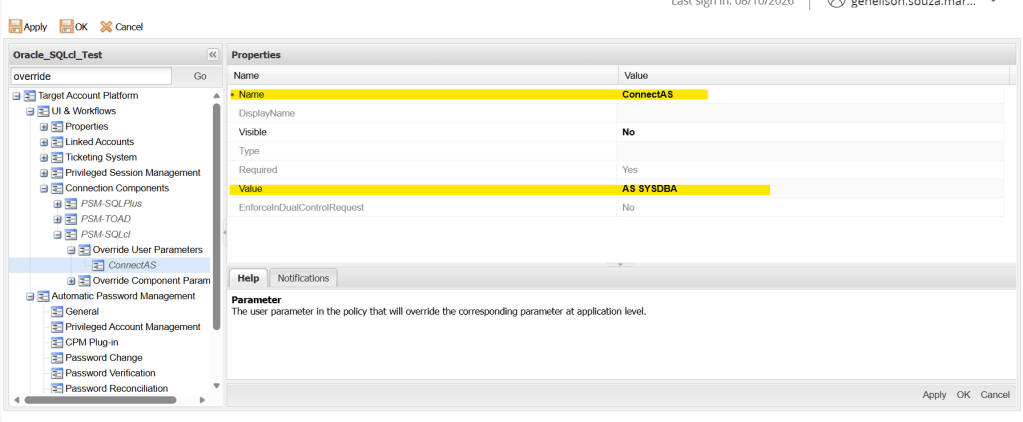
For my test platform, I used:
| Property | Value |
|---|---|
| Name | ConnectAs |
| Visible | No |
| Required | Yes |
| Value | AS SYSDBA |
| EnforceInDualControlRequest | No |
With Visible = No, users are not prompted to enter the value, and the platform provides the configured value.
This is useful when the platform is specifically intended for SYSDBA connections.
For platforms supporting different Oracle privilege levels, consider whether a fixed value is appropriate or whether users should be allowed to select the connection mode.
Save the configuration and make sure PSM-SQLcl is associated with the platform.
Figure 1 — Platform-level ConnectAs override configuration.
Step 4 — Configure AppLocker for SQLcl and Java
CyberArk PSM uses AppLocker to restrict which applications can run on the server.
Because SQLcl is Java-based, you need to consider both:
D:\oracle\sqlcl\bin\sql.exe
and the Java executable used by SQLcl:
C:\Program Files\Eclipse Adoptium\jdk-17...\bin\java.exe
CyberArk stores its PSM AppLocker configuration in:
PSMConfigureAppLocker.xml
This file is located in the PSM installation’s Hardening directory.
For the SQLPlus component, CyberArk documents editing the Oracle application section and then running:
cd "C:\Program Files (x86)\CyberArk\PSM\Hardening".\PSMConfigureAppLocker.ps1
For SQLcl, review the existing XML structure and add narrowly scoped permissions for the SQLcl executable and the required Java runtime, using the rule syntax supported by your PSM version.
For example, the following is a conceptual Windows AppLocker file-path condition:
<FilePathCondition Path="D:\oracle\sqlcl\bin\sql.exe" />
This is not a complete PSMConfigureAppLocker.xml entry. Do not paste it into the file without adapting it to the CyberArk schema.
Also, keep in mind that allowing sql.exe and java.exe does not necessarily mean SQLcl has everything it needs to run.
That brings us to the most interesting part of my troubleshooting.
Step 5 — Troubleshoot SQLcl Closing Immediately
After configuring the connection component, I tested the connection through PVWA.
SQLcl opened, but after a few seconds the window closed.
Initially, I suspected a problem with the command-line parameters or the PSM session handling.
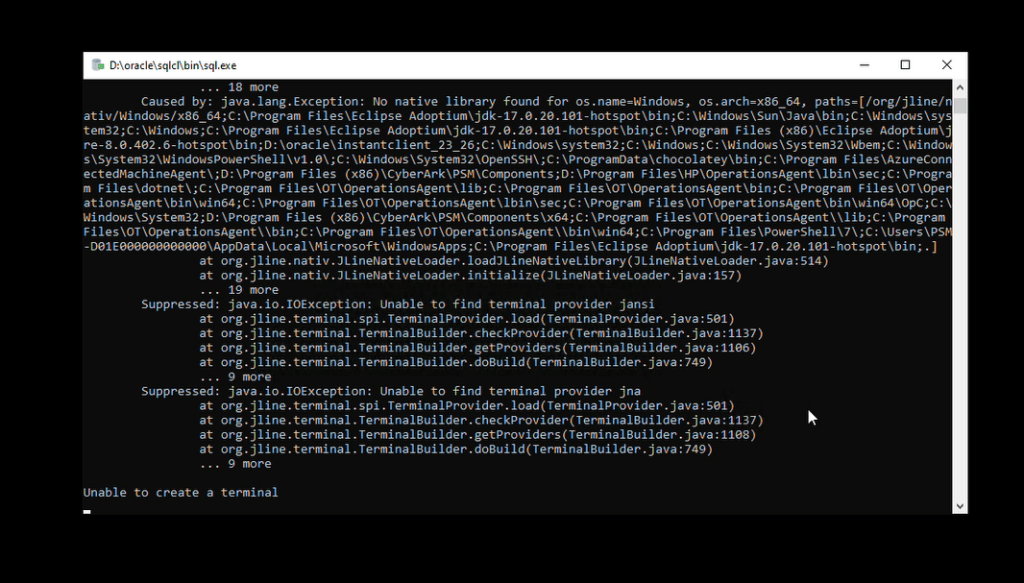
However, after inspecting the error displayed by SQLcl, I found the following messages:
java.lang.Exception: No native library foundjava.io.IOException:Unable to find terminal provider jnaUnable to create a terminal
This suggested that SQLcl could not initialize its terminal environment.
SQLcl uses the JLine library for terminal interaction. JLine can depend on native libraries to interact with the Windows console.
So I checked the Windows AppLocker logs.
Figure 2 — SQLcl Java terminal initialization error.
Step 6 — Identify the Blocked DLL in Event Viewer
On the PSM server, open Event Viewer and navigate to:
Applications and Services Logs → Microsoft → Windows → AppLocker → EXE and DLL
Filter for Event ID 8004.
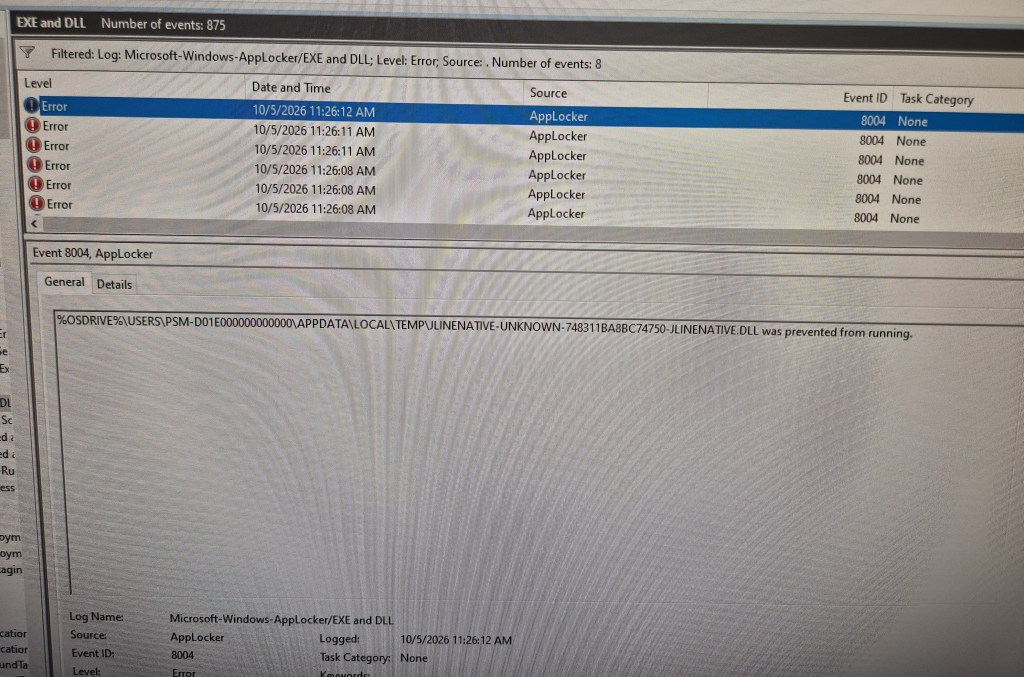
During my test, I found an event indicating that AppLocker had prevented the following DLL from running:
%OSDRIVE%\USERS\<ShadowUser>\APPDATA\LOCAL\TEMP\JLINENATIVE-UNKNOWN-<GeneratedID>-JLINENATIVE.DLL
This was a particularly useful discovery.
SQLcl was able to launch, but its Java terminal library was attempting to load a native DLL from the temporary directory of the PSM Shadow User.
AppLocker blocked that DLL.
The Java error and the AppLocker event were consistent with each other: SQLcl could not load the native library needed to initialize its terminal.
Figure 3 — AppLocker Event ID 8004 showing the blocked JLine DLL.
Why is the DLL in the Shadow User’s Temp directory?
JLine can extract native libraries from its Java packages into a temporary directory before loading them.
When SQLcl runs through PSM, that temporary directory belongs to the Windows user context used for the session.
In this case, it was the PSM Shadow User.
The generated DLL filename may change between executions, so allowing one specific temporary filename is not a reliable long-term solution.
Step 7 — Investigate the JLine DLL AppLocker Exception
After identifying the blocked DLL, I returned to the PSM AppLocker configuration.
The Event Viewer entry showed that JLine was trying to load its native library from the temporary directory of a PSM Shadow User.
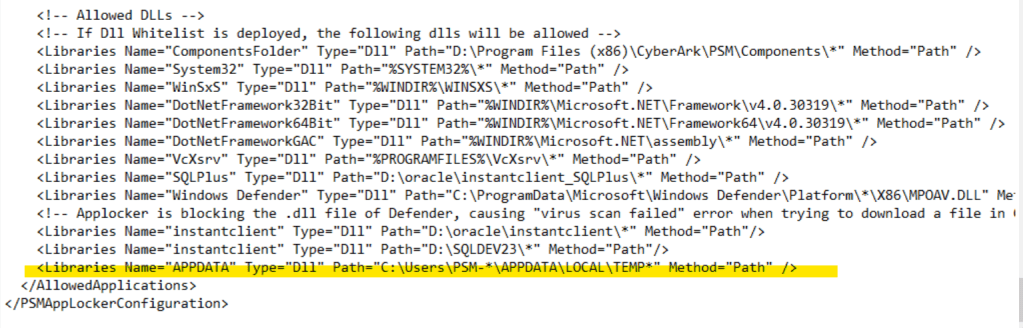
To investigate this behavior, I added a DLL path exception to the PSMConfigureAppLocker.xml file.
The entry was placed in the Allowed DLLs section, alongside the existing library permissions:
<!-- Allowed DLLs --><Libraries Name="APPDATA" Type="Dll" Path="C:\Users\PSM-*\APPDATA\LOCAL\TEMP\*" Method="Path" />
The purpose was to determine whether allowing DLL loading from the Shadow User’s temporary directory would resolve the JLine initialization error.
Understanding the rule
The important attributes are:
| Attribute | Description |
|---|---|
| Name | Identifier used for the library entry |
| Type | Specifies a DLL permission |
| Path | Matches files under the temporary directories of users whose profile paths begin with PSM- |
| Method | Uses path-based matching |
The wildcard is relevant because PSM can use different Shadow Users for different sessions.
Also, JLine generates a temporary DLL filename, so the filename may not remain identical between executions.
Security consideration
This rule is useful for investigating whether AppLocker is responsible for the SQLcl startup failure, but it is broader than necessary for a production configuration.
It permits DLLs throughout the matched temporary directories, not only the JLine library.
Since temporary directories are normally writable by their users, such an exception can weaken application control.
For production, I would prefer a more restrictive approach, such as loading the required native library from an administrator-controlled directory and allowing only the required file or trusted publisher.
The exact implementation needs to be validated against the SQLcl and JLine versions installed on the PSM server.
Figure 4 — DLL exception added to PSMConfigureAppLocker.xml.
Applying the AppLocker configuration
After modifying the XML, save the file and follow the CyberArk AppLocker deployment procedure applicable to your PSM version.
For an installation using the standard hardening directory, this may involve:
cd "C:\Program Files (x86)\CyberArk\PSM\Hardening".\PSMConfigureAppLocker.ps1
Before applying the changes, back up the original XML and verify that the new entry follows the schema expected by the installed PSM version.
After deployment, create a new SQLcl session through PVWA and check Event Viewer again.
The main things to validate are:
- Whether the
jlinenative.dllAppLocker block disappears. - Whether SQLcl initializes its terminal successfully.
- Whether the connection remains open.
- Whether the required PSM recording and auditing controls still work.
At this stage, the AppLocker block is confirmed, but the final end-to-end remediation is still being validated.
Step 8 — Validate the Connection Through PVWA
Once the executable, Java runtime, and required libraries are allowed, test the component again.
From PVWA:
- Open an Oracle account associated with the test platform.
- Select Connect.
- Choose the
PSM-SQLclconnection component. - Verify that SQLcl starts.
- Confirm that the database connection succeeds.
- Execute a simple SQL statement.
- Confirm that the session remains open and that the required PSM auditing and recording controls work correctly.
A successful SQLcl startup is only part of the validation.
For a production-ready PSM component, session lifecycle management, credential protection, auditing, and recording must also work as expected.
Final Thoughts
What started as a simple SQLPlus-to-SQLcl integration turned into a useful reminder of how important the Windows execution environment is when developing CyberArk PSM Connection Components.
The main lesson was that allowing an application’s executable is not always enough.
Java applications may extract and load additional native libraries at runtime, and those libraries must comply with the PSM server’s AppLocker policy.
In this case, Event Viewer helped me connect the SQLcl terminal initialization error with a blocked jlinenative.dll file under the Shadow User’s temporary directory.
I hope this walkthrough helps if you are working on a similar integration.
Happy troubleshooting!
References
- CyberArk PAM Self-Hosted — SQL Plus: https://docs.cyberark.com/pam-self-hosted/latest/en/content/pasimp/psm_sqlplus.htm
- CyberArk PAM Self-Hosted — Configure Connection Components: https://docs.cyberark.com/pam-self-hosted/latest/en/content/pasimp/configuring-psm-connections.htm
- CyberArk PAM Self-Hosted — User Parameters: https://docs.cyberark.com/pam-self-hosted/latest/en/content/pasimp/psm_cc_user.htm
- JLine — Terminal Providers: https://jline.org/docs/modules/terminal-providers/
- JLine — Native Library Loader: https://www.javadoc.io/static/org.jline/jline/4.0.0/org/jline/nativ/JLineNativeLoader.html
Tags: CyberArk, PSM, Oracle SQLcl, SQLPlus, AppLocker, JLine, Java, PAM, Connection Components


Leave a Reply