Tag: Troubleshooting

  • Computational Thinking: Learning to Solve Problems Before Writing Code

    In the past, when I first heard the expression computational thinking, I immediately associated it with programming.

    I imagined algorithms, programming languages, loops, functions, variables, and all the things we normally connect with software development.

    But while studying the subject, I realized something much more interesting:

    Computational thinking is not really about learning how to code. It is about learning how to structure a problem.

    And that distinction matters.

    You can use computational thinking, for example, before writing a PowerShell script, while troubleshooting an application, when designing an automation, when investigating an incident, or even when solving problems completely unrelated to computers.

    The material I was studying describes computational thinking as a tool for understanding how computers work, designing software, and solving problems. It also emphasizes something important: understanding what computers can and cannot do.

    So I started asking myself:

    What does it actually mean to think computationally?

    This article is my attempt to explain what I learned in the same way I would explain it to a colleague sitting next to me.


    First, forget the computer for a moment

    Suppose I tell you:

    “The application is not working.”

    What would you do?

    You could immediately start checking logs, restarting services, testing the network, looking at the database, checking credentials, inspecting certificates, and opening configuration files.

    But there is a problem.

    You still do not really know what problem you are solving.

    “The application is not working” is not a technical diagnosis.

    It is only a description of a symptom.

    Computational thinking encourages us to transform this vague statement into something structured.

    For example:

    Application is not working
    |
    +-- Is the server reachable?
    |
    +-- Is the service running?
    |
    +-- Is authentication working?
    |
    +-- Can the application reach its dependency?
    |
    +-- Is the expected response being returned?

    Suddenly the problem becomes much easier to reason about.

    That is where computational thinking starts.


    A computer is extremely fast, but extremely literal

    One of the ideas that helped me understand this topic is surprisingly simple.

    Computers are incredibly good at executing instructions.

    But they need sufficiently precise instructions.

    The document explains an algorithm as a sequence of logical steps created before those steps are translated into a programming language.

    The example used in the material is calculating BMI.

    The algorithm is basically:

    1. Ask for the person's weight
    2. Ask for the person's height
    3. Calculate BMI
    4. Display the result

    Only after defining that logic do we translate it into Java, Python, PowerShell, or another programming language.

    That gave me a useful mental model:

    The algorithm is the solution. The code is one implementation of that solution.

    This sounds obvious, but it changes how we approach scripting.

    Instead of opening PowerShell and immediately typing:

    foreach (...)
    {
    ...
    }

    we can first ask:

    What exactly am I trying to accomplish?
    What information do I need?
    What decisions must be made?
    What should happen if something fails?
    What should the final result look like?

    Only then do we write the code.


    The four ideas I use to think about a problem

    While learning computational thinking, I found four concepts particularly useful:

    decomposition, pattern recognition, abstraction, and algorithms.

    The document explicitly discusses decomposition and data abstraction as important techniques when computational thinking must scale to increasingly complex problems.

    I like to translate the four ideas into very simple questions:

    Break it. Compare it. Ignore the noise. Define the steps.

    Let me explain.


    1. Decomposition: break the problem into smaller problems

    Imagine that I receive this task:

    “Create an automation that changes a password on a remote system.”

    That sounds simple.

    Until we start looking more closely.

    We can decompose it:

    Password Management
    ├── Receive account information
    ├── Retrieve current credential
    ├── Connect to target system
    ├── Authenticate
    ├── Generate or receive new password
    ├── Change password
    ├── Validate new password
    ├── Handle errors
    └── Log the result

    Now I no longer have one big problem.

    I have several smaller problems.

    And smaller problems are much easier to understand, test, and troubleshoot.

    Interestingly, the document also discusses decomposition in the context of software architecture: architecture defines components and their interactions, and decomposition is described as an indispensable tool for identifying those parts.

    This made something click for me.

    Decomposition exists at many levels.

    We can decompose:

    a problem
    a solution
    a system
    components
    functions
    instructions

    That is essentially how complexity becomes manageable.


    2. Pattern recognition: have I seen this before?

    Suppose a PowerShell script works with most passwords but fails with some of them.

    At first the failures appear random.

    Then I collect examples:

    Password ABC123! → works
    Password Hello2026! → works
    Password My*Password → fails
    Password Test*123 → fails

    Now something interesting appears.

    There is a pattern.

    The failures are associated with *.

    Instead of investigating:

    “Why does PowerShell randomly fail?”

    I can ask a much narrower question:

    “How is the * character being interpreted when this command is constructed?”

    That is a dramatically better problem.

    Pattern recognition is useful because many technical problems are repetitions with small variations.

    For example:

    Server A fails after certificate renewal
    Server B fails after certificate renewal
    Server C fails after certificate renewal

    The shared characteristic deserves attention.

    Or:

    Account A works
    Account B works
    Account C fails
    Difference:
    Account C belongs to another domain

    Again, we have a clue.

    For me, pattern recognition in troubleshooting means continuously asking:

    What is common between the failures, and what is different between successful and unsuccessful cases?


    3. Abstraction: what actually matters?

    This one was initially less intuitive for me.

    I used to think abstraction was mainly an object-oriented programming concept.

    But it is much broader.

    Imagine that I am troubleshooting an authentication problem, and I have this information:

    Server: APP01
    Operating System: Windows Server 2022
    CPU: 23%
    Memory: 51%
    Disk: 62%
    Datacenter: Amsterdam
    Application version: 4.2
    Authentication: Failed
    Account status: Locked
    Wallpaper: Company Standard

    Do I need all this information?

    Probably not.

    For the problem I am currently investigating, I might reduce the model to:

    Authentication request
    Account
    Locked?
    Credentials valid?
    Permissions correct?

    That reduction is abstraction.

    I am deliberately hiding information that is not currently useful.

    The study material explains that software design itself relies on abstractions: architecture, data structures, interfaces, and components are models of the system that exist before they are represented in code.

    That helped me understand abstraction differently.

    Abstraction is not about ignoring reality.

    It is about creating a useful representation of reality for the problem we are trying to solve.


    4. Algorithms: define the procedure

    After decomposing the problem, identifying patterns, and removing irrelevant information, we need a procedure.

    That procedure is our algorithm.

    For example, imagine a script that checks whether a Windows service is running on 100 servers.

    Before writing PowerShell, we can define:

    Get list of servers
    For each server:
    Test connectivity
    If unreachable:
    Record "Unreachable"
    Continue to next server
    Check service
    If service is running:
    Record "OK"
    Otherwise:
    Record "Service stopped"
    Generate report

    That is already most of the intellectual work.

    The PowerShell implementation becomes the translation of that reasoning into syntax.

    The source material makes the same distinction: an algorithm defines the logical steps, and afterward those steps are converted into code that a computer can interpret.


    Let us solve a real troubleshooting problem

    Suppose I receive the following incident:

    “The automation stopped changing passwords.”

    This is exactly the kind of statement that can send us in twenty different directions.

    Instead, I can apply computational thinking.

    Step 1: Decomposition

    First, I divide the operation:

    Input
    Retrieve credentials
    Connect
    Authenticate
    Build command/request
    Execute
    Receive response
    Validate
    Log result

    Step 2: Find the boundary of the failure

    Now I test each stage.

    Input ✓
    Retrieve credentials ✓
    Connection ✓
    Authentication ✓
    Build command ✓
    Execute command ✗

    This is one of my favorite troubleshooting techniques.

    Instead of asking:

    “Why does the automation not work?”

    I can now ask:

    “What is happening between command construction and command execution?”

    My search space has become much smaller.

    Step 3: Look for patterns

    Maybe successful executions use passwords like:

    Secret123!
    Password2026@

    while failures use:

    Secret*123

    Now I have a hypothesis.

    The special character may be changing how the command is interpreted.

    Step 4 — Create a test

    I do not need to investigate the entire production workflow.

    I can build a small test:

    Input password containing *
    Construct command
    Print or inspect command safely
    Execute
    Observe result

    We have now transformed a large operational incident into a controlled experiment.

    This is computational thinking in practice.


    Complexity is the real enemy

    Another part of the document that caught my attention was its discussion about complexity.

    It states that managing complexity is one of the most important technical concerns in software development.

    It also describes three bad situations:

    Complex solution → simple problem
    Simple but incorrect solution → complex problem
    Complex and inappropriate solution → complex problem

    The important observation is that the underlying problem may already be complex, but we can still accidentally add unnecessary complexity through our solution.

    I think this is extremely relevant outside software engineering too.

    Imagine a requirement:

    “Once per day, retrieve a file from a server.”

    We could design:

    Kubernetes
    Microservices
    Message Queue
    Database
    Multiple APIs
    Monitoring stack

    Technically impressive.

    But maybe all that was actually required was:

    Scheduled PowerShell script
    Retrieve file
    Validate
    Log result

    Computational thinking is not about creating the most sophisticated solution.

    It is about creating an appropriate solution.


    This changed how I think about requirements

    There is another interesting connection here.

    Engineering is not simply receiving a request and implementing exactly what was requested.

    The document describes engineers as people who have to consider users, stakeholders, technical possibilities, cost, and sometimes conflicting objectives in order to create a practical solution.

    That is an important lesson.

    Suppose somebody asks:

    “Can you create a script that restarts the service every hour?”

    The easiest response would be:

    “Sure.”

    But computational thinking encourages another question:

    Why does the service need to be restarted every hour?

    Maybe the restart is not the requirement.

    Maybe it is a workaround for:

    memory leak
    network timeout
    authentication expiration
    application bug
    dependency failure

    If we automate the restart without understanding the underlying problem, we may simply automate the symptom.

    This is where technical work starts becoming engineering.


    Thinking in the small and thinking in the large

    Another concept from the study material that I found useful is the distinction between:

    thinking in the small

    and

    thinking in the large.

    For a small script maintained by one person, relatively simple reasoning may be enough.

    But once the solution grows:

    1 developer
    5 developers
    multiple teams
    many components
    thousands of users
    years of maintenance

    the nature of the problem changes.

    The document explains that when software grows in scale and teams become involved, additional practices are required. Computational thinking expands into techniques such as decomposition, abstraction, encapsulation, information hiding, project management, and software lifecycle management.

    This is interesting because it shows that the solution that works for a small problem does not necessarily scale to a large one.

    A 50-line PowerShell script might be perfectly understandable as:

    Input
    Logic
    Output

    A 5,000-line automation may require:

    Configuration
    Authentication module
    Connection module
    Business logic
    API module
    Validation
    Logging
    Error handling

    Same goal.

    Different scale.

    Different way of thinking.


    A simple framework I want to start using

    After studying this topic, I created a small checklist for myself.

    Whenever I face a technical problem, instead of jumping directly into commands or code, I want to write:

    PROBLEM
    What exactly is happening?
    EXPECTED RESULT
    What should happen instead?
    DECOMPOSITION
    What smaller parts make up this problem?
    PATTERNS
    What works?
    What fails?
    What is common between the failures?
    ABSTRACTION
    Which information is relevant right now?
    What can I ignore temporarily?
    ALGORITHM
    What sequence of tests or actions should I perform?
    VALIDATION
    How will I know that the problem is actually solved?

    There is also one question I find particularly powerful:

    At what exact point does the behavior stop matching what I expected?

    For example:

    Input
    Connection ✓
    Authentication ✓
    API Request ✓
    API Response ✓
    Response Parsing ✗

    Now I do not have an “API integration problem.”

    I have a response parsing problem.

    That is a much better problem to have.


    Computational thinking does not mean thinking like a computer

    This may be the biggest misunderstanding I had before studying the subject.

    Computational thinking does not mean turning ourselves into machines.

    Quite the opposite.

    Computers are extremely good at executing instructions.

    Humans have to decide which instructions make sense in the first place.

    The material summarizes this nicely through the relationship between input, processing, and output: information enters the system, is processed according to instructions, and produces a result.

    Our role is to design that reasoning.

    So today I would describe computational thinking like this:

    Computational thinking is the ability to transform an unclear problem into a structured problem that can be understood, tested, and eventually automated.

    Programming can come afterward.

    And sometimes programming is not necessary at all.


    Final thoughts

    The more I study software development and automation, the more I realize that knowing commands is only part of the job.

    Knowing PowerShell syntax is useful.

    Knowing an API is useful.

    Knowing Linux, Windows, networking, or security products is useful.

    But when something unfamiliar breaks, none of us knows every command.

    What remains useful is the ability to reason:

    Understand
    Break down
    Find patterns
    Remove noise
    Create a hypothesis
    Test
    Learn
    Adjust

    That is probably the part of computational thinking that interests me the most.

    It gives us a method for dealing with problems we have never seen before.

    And for someone working with technology, troubleshooting, scripting, and automation, I think that may be much more valuable than simply memorizing another command.


    Reference

    This article (It has been written in Portuguese) was inspired by my study of the “Pensamento Computacional” educational material published by the Universidade Federal de Goiás (UFG). The material approaches computational thinking through computer systems, algorithms, software engineering, complexity, decomposition, abstraction, and software design.

    One detail I would keep exactly as it is in this version is the curious-student voice. Instead of presenting yourself as someone teaching “the correct methodology,” the article repeatedly uses ideas such as “this made something click for me,” “I started asking myself,” and “the way I understand it now.” That makes the article fit very naturally with the conversational technical style you have been developing for your blog.

    https://portaldelivros.ufg.br/index.php/cegrafufg/catalog/view/212/127/595

  • Troubleshooting an IDIRA/CyberArk CPM TPC Plugin: When the Problem Wasn’t the PowerShell Script

    Recently, I ran into an interesting issue with a custom IDIRA/CyberArk CPM TPC plugin that I use to manage passwords in One Identity.

    The plugin had been working before, but suddenly password changes started failing.

    At first, everything pointed toward the PowerShell script. After all, the TPC plugin launches PowerShell, the script makes the API calls to One Identity, and the failure appeared during that process.

    But as is often the case with CPM troubleshooting, the first error was only part of the story.

    In this post, I want to walk through what happened, the two separate problems I found, and why understanding the PluginManagerUser is important when troubleshooting custom CPM plugins.


    How the Plugin Works

    The plugin is a TPC-based CPM plugin.

    At a high level, the workflow looks like this:

    CPM
    |
    +-- Process.ini
    |
    +-- Prompts.ini
    |
    +-- PowerShell script
    |
    +-- Connect to One Identity
    +-- Build the API request
    +-- Change the password
    +-- Return the result to the TPC plugin

    The Process.ini controls the execution flow, while Prompts.ini identifies the responses returned during the process.

    The PowerShell script performs the actual interaction with the One Identity API.

    When everything works, the process is straightforward:

    CPM
    |
    v
    TPC Plugin
    |
    v
    PowerShell
    |
    v
    One Identity API
    |
    v
    Password changed

    Then one day, it stopped working.


    Problem 1: At line:1 char:143

    The first error I saw in the TPC trace was:

    At line:1 char:143

    The plugin attempted to find a known prompt in Prompts.ini, but none of the expected responses matched.

    Eventually, the generic standard prompt matched:

    .*

    At first, this made the problem look like an error inside the PowerShell script.

    I tried adding things such as:

    Write-Host
    Write-Output

    and even:

    Start-Transcript

    But nothing useful appeared in the logs.

    That turned out to be an important clue.

    The problem was happening before the PowerShell script was actually able to execute.


    The Password Was Breaking the PowerShell Command

    After looking more closely at the command generated by the TPC plugin, I found the first problem.

    One of the passwords contained a special character:

    *

    The password was being inserted directly into the command used to launch PowerShell.

    Conceptually, the TPC plugin was doing something similar to:

    PowerShell.exe & ".\bin\MyPlugin.ps1" -uri <address> -serviceAccPass <password> -UpdateUserPass <newpassword>

    Because the password became part of the PowerShell command line, the special character affected how PowerShell parsed the command.

    The location reported by:

    At line:1 char:143

    was exactly where the problematic character appeared in the generated command.

    This also explained why my Write-Host, Write-Output, and Start-Transcript debugging attempts didn’t help.

    The execution was effectively:

    TPC
    |
    v
    Start PowerShell.exe
    |
    v
    PowerShell parses command line
    |
    X Parsing error
    |
    +--> At line:1 char:143

    The script itself never got far enough to execute my debugging commands.

    After correcting the password/argument handling problem, PowerShell could launch the script again.

    But then I was back to the original problem.


    Problem 2: A Strange File Called 1

    Once the PowerShell parsing problem was solved, the plugin still wasn’t successfully managing the password.

    This time I noticed something very unusual.

    Every time the plugin failed, a file called simply:

    1

    with no extension was created under the CPM installation directory:

    [Drive]:\Program Files (x86)\CyberArk\PasswordManager

    That immediately changed the direction of my troubleshooting.

    Why was the plugin creating a file in the root of the Password Manager installation instead of writing where it was supposed to?

    This started looking less like an API problem and more like an execution-context or filesystem-permissions problem.

    And then I performed a test that provided the most useful clue in the entire investigation.


    The Test That Pointed Me Toward Permissions

    As part of the troubleshooting, I temporarily added the following parameter to the CyberArk platform:

    RunPluginWithHighPrivilege=Yes

    Then I ran the password change again.

    This time, the plugin worked successfully.

    That was a major clue.

    The PowerShell script was the same.

    The One Identity API was the same.

    The account being managed was the same.

    The TPC logic was essentially the same.

    But changing the privilege context under which the plugin executed changed the result from:

    FAILURE

    to:

    SUCCESS

    That immediately made me think:

    If the plugin works with higher privileges but fails under its normal execution context, maybe the problem isn’t the plugin logic at all. Maybe the normal plugin user doesn’t have permission to access something it needs.

    That shifted my investigation toward the Windows security context used to execute CPM plugins.

    And that eventually led me to the PluginManagerUser.


    Understanding the PluginManagerUser

    The PluginManagerUser was introduced starting with CPM version 12.2.4.

    It is a local Windows user involved in the CPM plugin execution architecture and is used by the CyberArk Password Manager service when executing plugins.

    This separation is important from a security perspective.

    We generally don’t want every plugin to execute with unnecessarily high privileges. The principle of least privilege applies here as well: a plugin should have only the permissions it requires to operate, rather than being granted elevated access to the server.

    This also means that there can be an important difference between:

    "I can run the PowerShell script successfully."

    and:

    "The CPM can run the PowerShell script successfully."

    Those are not necessarily equivalent tests.

    For example, I might log onto the CPM server and manually execute:

    .\rb_OneIdentity-Change.ps1

    under my administrative account.

    The execution context is then something like:

    Administrator
    |
    v
    PowerShell
    |
    v
    Script

    But during normal CPM operation, the plugin is executed under the security controls and permissions associated with the CPM plugin infrastructure:

    CPM
    |
    v
    Plugin execution
    |
    v
    PluginManagerUser context/permissions
    |
    v
    PowerShell
    |
    v
    Script

    So a script working manually doesn’t necessarily prove that the CPM execution context has everything it needs.


    Why RunPluginWithHighPrivilege=Yes Was Such an Important Test

    This was probably the most useful diagnostic step in my troubleshooting.

    The fact that:

    RunPluginWithHighPrivilege=No

    resulted in failure, while temporarily using:

    RunPluginWithHighPrivilege=Yes

    allowed the plugin to work, strongly pointed toward an execution-context or permissions difference.

    It gave me a much narrower troubleshooting question:

    What can the elevated execution context access that the normal PluginManagerUser context cannot?

    Instead of continuing to modify the API calls or PowerShell logic, I started looking at:

    • filesystem permissions;
    • CPM folders;
    • hardening;
    • permissions assigned to PluginManagerUser;
    • and directories the plugin might need during execution.

    This is also why I would treat RunPluginWithHighPrivilege=Yes primarily as a troubleshooting clue in this scenario, rather than simply leaving it enabled as the fix.

    If elevating the plugin resolves the problem, I want to understand why before deciding that elevation is necessary.


    Finding the Actual Permissions Problem

    Once I started looking at the problem from that perspective, things began to make sense.

    I checked the permissions on the CPM directories and found that the PluginManagerUser did not have all the required permissions on the:

    [Drive]:\Program Files (x86)\CyberArk\PasswordManager\Logs

    directory.

    I also found missing permissions associated with:

    [Drive]:\Program Files (x86)\CyberArk\PasswordManager\Scanner

    This was consistent with what I had observed.

    The plugin worked when I forced it to execute with higher privileges, but failed under its normal security context.

    After correcting the required permissions for PluginManagerUser, I removed the need to rely on the high-privilege test and executed the password management operation again.

    This time:

    CPM
    |
    v
    TPC Plugin
    |
    v
    PowerShell
    |
    v
    One Identity API
    |
    v
    Password successfully managed

    The CPM was able to manage the One Identity password successfully again.


    Hardened CPMs Make the Execution Context Even More Important

    This becomes especially relevant on hardened CPM servers.

    IDIRA/CyberArk has specific guidance around the PluginManagerUser profile and permissions when using the Web Application Framework on a hardened CPM.

    That is an important reminder that hardening is not simply about restricting access.

    The required execution accounts still need access to the specific resources that allow CPM components and plugins to function correctly.

    A useful way of thinking about it is:

    Too many permissions
    |
    v
    Security problem
    Correct permissions
    |
    v
    Plugin works securely
    Too few permissions
    |
    v
    Plugin failure

    The goal isn’t to give PluginManagerUser broad administrative permissions.

    The goal is to make sure that the account has the specific permissions required by the CPM architecture and the plugin execution process.

    That is why the high-privilege test was useful: it demonstrated that permissions were likely involved without making elevated execution the permanent solution.


    Why This Incident Was Misleading

    What made this troubleshooting particularly interesting was that I actually encountered two separate problems.

    The first was:

    At line:1 char:143

    which led me to a special-character issue in the command used to launch PowerShell.

    After resolving that, the original problem remained.

    Then I noticed the unexpected:

    1

    file.

    Finally, the high-privilege test gave me the key clue:

    Normal plugin execution
    |
    X
    FAILURE
    RunPluginWithHighPrivilege=Yes
    |
    v
    SUCCESS

    That led me to investigate PluginManagerUser, where I eventually found the missing permissions.

    My complete troubleshooting path therefore looked something like this:

    Password change fails
    |
    v
    "At line:1 char:143"
    |
    v
    Inspect generated PowerShell command
    |
    v
    Find special-character problem
    |
    v
    Fix PowerShell invocation
    |
    v
    Original failure remains
    |
    v
    Notice unexpected file "1"
    |
    v
    Test RunPluginWithHighPrivilege=Yes
    |
    v
    Plugin works!
    |
    v
    Suspect execution context/permissions
    |
    v
    Investigate PluginManagerUser
    |
    v
    Find missing permissions on Logs / Scanner
    |
    v
    Correct permissions
    |
    v
    Run plugin normally
    |
    v
    SUCCESS

    This is a good reminder that fixing one error doesn’t necessarily mean you have found the original root cause.

    Sometimes you remove one layer of the problem only to expose the next one.


    What I Would Check Next Time

    If I encountered a similar TPC plugin problem again, I would keep a few things in mind.

    1. Look at the exact PowerShell command

    If the trace reports:

    At line:1 char:143

    don’t immediately assume it means line 143 of the .ps1 file.

    Look at the command being passed to PowerShell.exe.

    The error may be occurring while PowerShell is parsing the command that is supposed to launch your script.


    2. Be Careful With Passwords as Command-Line Arguments

    Passwords are unpredictable input.

    A plugin may work perfectly with:

    Password123

    and fail when the next generated password contains a character that interacts badly with the way the command line is constructed.

    A custom CPM plugin should be designed with the complete password policy in mind.


    3. Compare Normal and Elevated Execution

    If appropriate in your troubleshooting environment, comparing normal plugin execution with an elevated execution can provide a valuable diagnostic clue.

    In my case:

    RunPluginWithHighPrivilege=Yes

    wasn’t the final solution.

    It was the test that pointed me toward the solution.


    4. Understand the PluginManagerUser

    When troubleshooting modern CPM plugins, don’t forget about the Windows account under which plugin operations are being performed.

    Check:

    • folder permissions;
    • user profile requirements;
    • hardening;
    • GPOs;
    • local security policies;
    • access to CPM directories;
    • and anything else the plugin needs to read, write, or execute.

    5. Pay Attention After CPM Hardening or Upgrades

    If a plugin worked previously and starts failing after:

    • a CPM upgrade;
    • hardening changes;
    • security baseline changes;
    • GPO deployment;
    • filesystem ACL modifications;

    then permissions should be high on the troubleshooting list.

    This is particularly important with PluginManagerUser, because a script may continue to work perfectly when tested manually by an administrator while failing when executed through the CPM.


    Final Thoughts

    The most useful lesson from this incident wasn’t specifically about One Identity, PowerShell, or even TPC plugins.

    It was about execution context.

    When developing or troubleshooting a CPM plugin, we naturally focus on:

    Process.ini
    +
    Prompts.ini
    +
    PowerShell
    +
    API

    But underneath all of them there is another layer:

    Windows security context
    +
    Filesystem permissions
    +
    CPM hardening

    If that layer isn’t correct, a perfectly valid plugin can still fail.

    In my case, the troubleshooting became much clearer when I temporarily tested:

    RunPluginWithHighPrivilege=Yes

    and the plugin suddenly worked.

    That told me to stop asking:

    “What’s wrong with my PowerShell?”

    and start asking:

    “What can this execution context access that the normal plugin execution context cannot?”

    That question eventually led me to the missing PluginManagerUser permissions on the Logs and Scanner directories.

    After correcting those permissions, the CPM was able to manage the One Identity passwords normally again without relying on the high-privilege workaround.

    So if you ever find yourself thinking:

    “The PowerShell works manually. Why doesn’t it work when CPM runs it?”

    don’t just look at the script.

    Look at who is running it — and what that user is allowed to access.


    References

    IDIRA/CyberArk Community — What are the differences between the PasswordManagerUser and PluginManagerUser?

    Useful background for understanding the different Windows accounts associated with CPM operations and the role of PluginManagerUser.

    IDIRA/CyberArk Community — CPM WebApplication Framework requires PluginManagerUser profile created for hardened CPM

    Useful reference when investigating PluginManagerUser, CPM hardening, user-profile requirements, and the permissions required for plugin execution on a hardened CPM.

  • How I Solved an IDIRA (formerly CyberArk) Vault Cluster Communication Issue in My Virtual Lab

    Sometimes the hardest problems aren’t caused by IDIRA at all, they’re hidden in the networking underneath.

    While building my IDIRA Digital Vault Cluster 15.2 lab on Windows Server 2022, I ran into a networking issue that took me longer to understand than I expected.

    The strange part?

    Everything worked perfectly before installing the Vault.

    The Windows servers could ping each other without any issues, the network looked healthy, and I was confident the cluster installation would be straightforward.

    Then, after installing IDIRA…

    Everything changed.

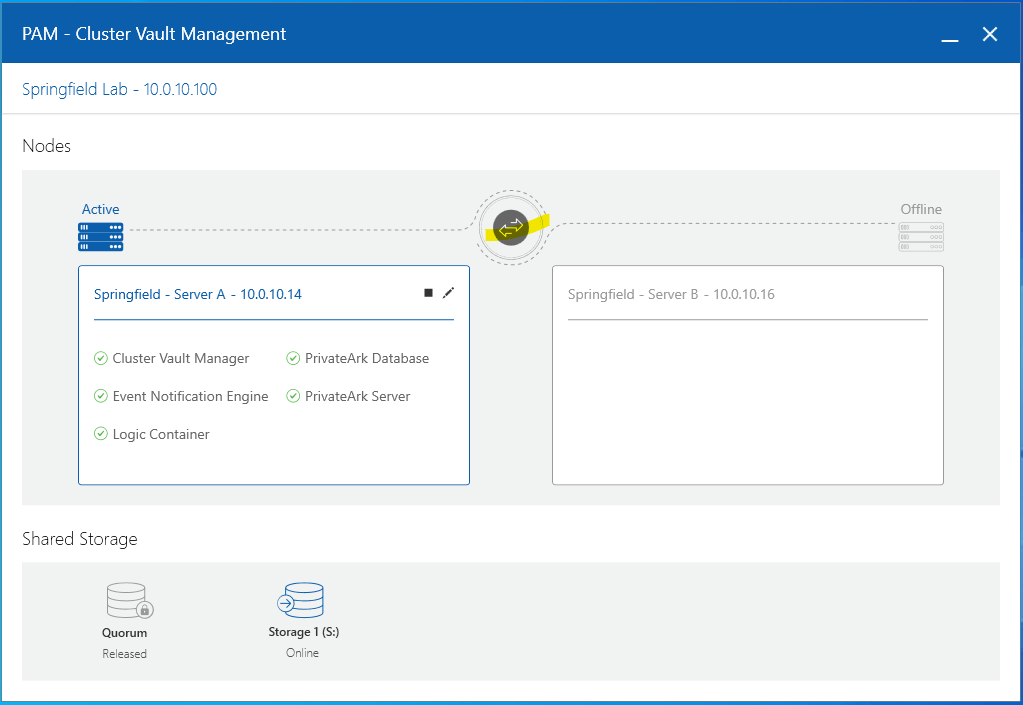
    The Cluster Vault Manager (CVM) showed the peer node as Offline, communication between the nodes stopped working correctly, and the Switchover button remained disabled.

    After a lot of troubleshooting, I finally found the real root cause. In this article, I’d like to share what happened, why it happened, and how I fixed it.


    My Lab Environment

    My environment consisted of two Vault servers with two network adapters each.

    ServerPublic NetworkPrivate Network
    Vault0110.0.10.1410.0.10.15
    Vault0210.0.10.1610.0.10.17
    VIP10.0.10.100

    The important detail is that both network adapters belonged to the same subnet (10.0.10.0/24).

    At first, I didn’t think this would be a problem.


    Symptoms

    Immediately after installing the Vault Cluster, I started seeing several strange behaviors:

    • The peer node appeared as Offline in the Cluster Vault Manager.
    • The Switchover button was disabled.
    • Some ping tests returned General failure.
    • Communication between the Vault nodes became unreliable.

    Cluster Vault Manager showing the peer node as Offline


    The Confusing Part

    This was the part that confused me the most.

    Before installing IDIRA:

    ✅ Both Windows servers communicated normally.

    After installing IDIRA:

    ❌ Communication suddenly became unstable.

    So naturally my first thought was:

    “The Vault installation broke my network.”

    But that’s not what actually happened.


    What Was Really Happening?

    The problem wasn’t IDIRA.

    The problem was how Windows was choosing the network interface.

    Since both NICs were in the same subnet, Windows had multiple valid paths to reach the peer server.

    For a regular Windows server, that’s usually acceptable.

    For an IDIRA Vault Cluster, it isn’t.

    The Cluster Vault Manager expects each network to have a very specific purpose:

    • Public Network
      • Client communication
      • Vault services
      • Virtual IP
    • Private Network
      • Heartbeat
      • Cluster synchronization
      • Internal node communication

    If Windows decides to send heartbeat traffic through the Public NIC instead of the Private NIC, the Cluster Manager considers the communication invalid.

    This is why the peer appears Offline even though the servers can technically still communicate.


    A Simple Way to Visualize the Problem

                     BEFORE ROUTES

    Windows chooses automatically

    +------------------------+
    | Vault 01 |
    | |
    Public ----| 10.0.10.14 |
    Private ---| 10.0.10.15 |
    +------------------------+
    |
    | Windows may choose
    | either interface
    |
    +------------------------+
    | Vault 02 |
    | |
    Public ----| 10.0.10.16 |
    Private ---| 10.0.10.17 |
    +------------------------+

    Result:
    ❌ CVM cannot guarantee the heartbeat uses the correct network.

    The Clue

    While researching the issue, I found an IDIRA Community article describing a very similar situation.

    Link to the article:

    https://community.cyberark.com/s/article/Status-of-the-peer-node-appears-as-Offline-within-the-CVM

    The recommendation was surprisingly simple:

    Create static host routes.

    At first I wondered:

    “Why would adding routes fix a communication problem if the servers already know how to reach each other?”

    Then it clicked.

    The routes weren’t teaching Windows where to go.

    They were teaching Windows which network adapter must always be used for each destination.


    The Fix

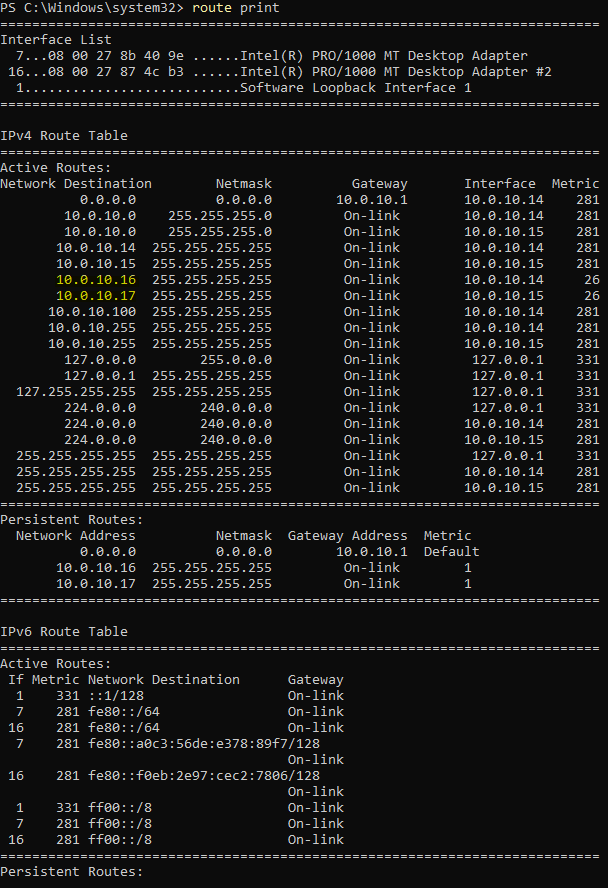
    I created persistent /32 host routes.

    The logic became:

    • Peer Public IP → Always use the Public NIC
    • Peer Private IP → Always use the Private NIC

    After creating the routes, Windows no longer had to guess.

    Communication immediately became stable.

    The Cluster Vault Manager recognized the peer correctly.

    The Offline status disappeared.

    The Switchover button became available again.

    Exactly what I wanted.


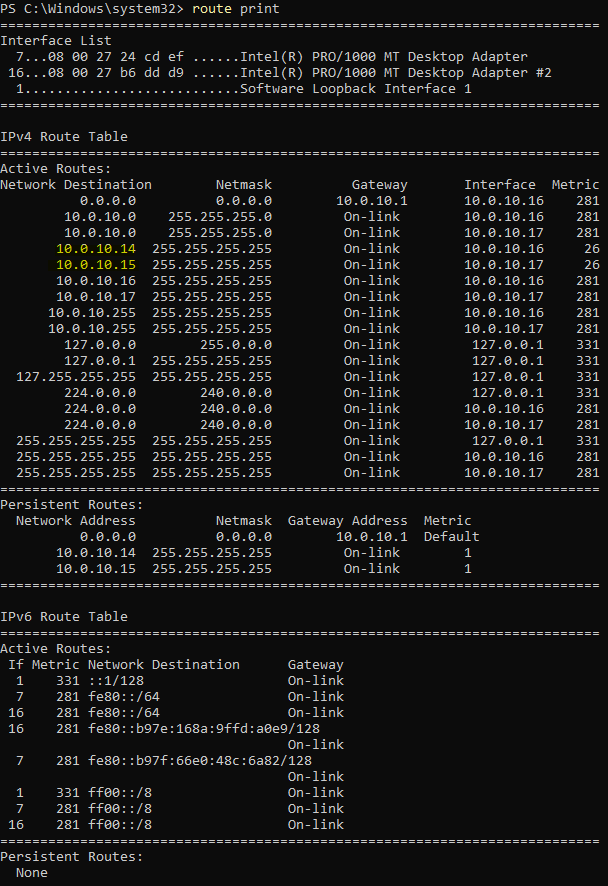
    Verifying the Routes

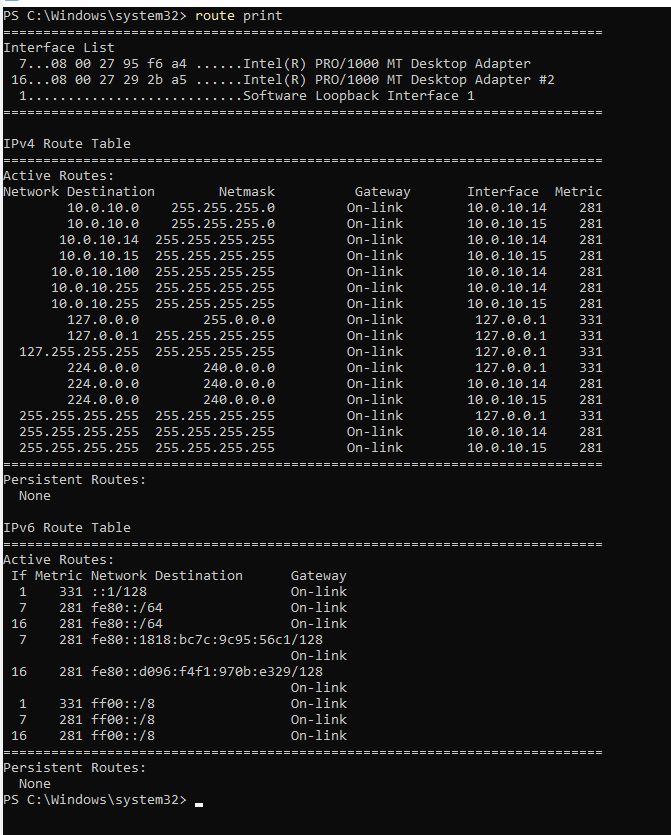
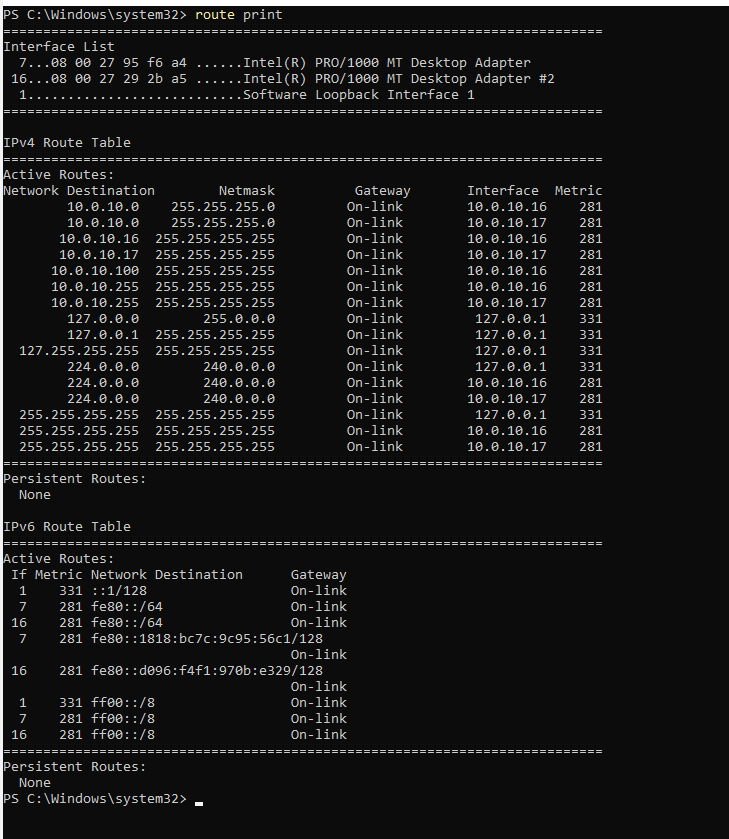
    I confirmed the routing table using:

    Get-NetRoute

    and

    route print

    Route Print before adding the static routes

    Route Print after adding the static routes


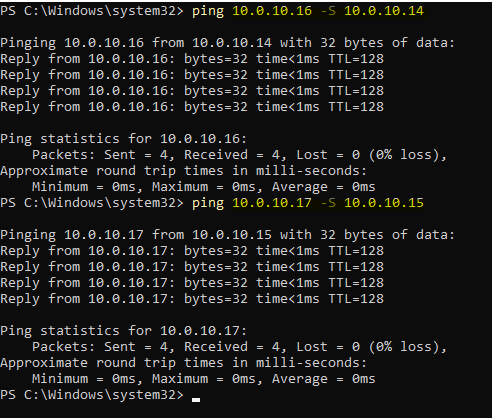
    Testing Connectivity

    I also forced the source IP during ping tests.

    ping 10.0.10.16 -S 10.0.10.14
    ping 10.0.10.17 -S 10.0.10.15

    This confirmed that each destination was using the expected interface.

    Successful connectivity test


    Why Did This Only Happen After Installing IDIRA?

    This was probably the biggest lesson I learned.

    IDIRA didn’t break my network.

    Instead, the installation introduced a service that depends on predictable network paths.

    Before installing the Vault, Windows could make routing decisions automatically.

    After installing the Cluster Vault Manager, those automatic decisions were no longer acceptable because heartbeat traffic must always travel through the correct interface.

    Once I understood that, the behavior made perfect sense.


    Best Practice

    If you’re designing a new environment, the best solution is still to use separate subnets.

    For example:

    • Public Network → 10.0.10.0/24
    • Private Network → 192.168.100.0/24

    In that scenario, Windows naturally selects the correct interface without requiring static routes.

    However, if your lab (or even an existing environment) uses both NICs within the same subnet, persistent host routes are an effective solution.


    Final Thoughts

    One of the things I enjoy most about building IDIRA labs is that every challenge teaches something new.

    This issue reminded me that not every IDIRA problem is actually an IDIRA problem.

    Sometimes the software is simply exposing a networking behavior that Windows has quietly tolerated all along.

    Understanding why something happens is far more valuable than simply memorizing the fix.

    Hopefully, if you ever see your peer node stuck in Offline after installing a Vault Cluster, this article will save you a few hours of troubleshooting.

    If you’ve faced similar issues in your IDIRA labs, I’d love to hear about your experience. Every environment teaches us something new, and sharing those lessons is one of the best ways we can help the community grow.