
Sometimes the hardest problems aren’t caused by IDIRA at all, they’re hidden in the networking underneath.
While building my IDIRA Digital Vault Cluster 15.2 lab on Windows Server 2022, I ran into a networking issue that took me longer to understand than I expected.
The strange part?
Everything worked perfectly before installing the Vault.
The Windows servers could ping each other without any issues, the network looked healthy, and I was confident the cluster installation would be straightforward.
Then, after installing IDIRA…
Everything changed.
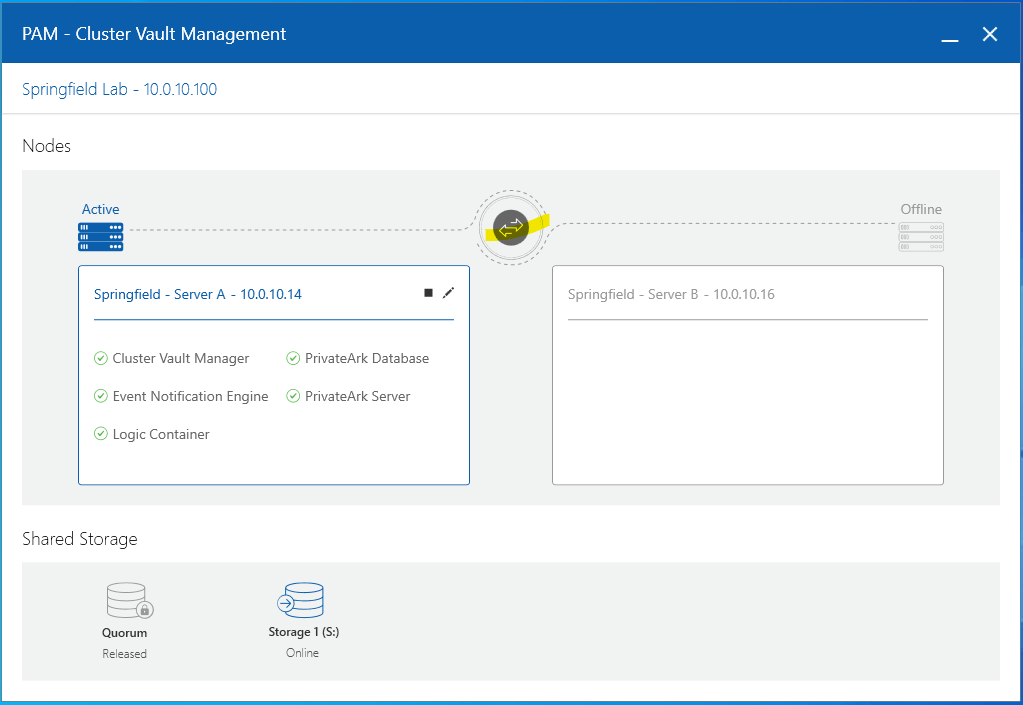
The Cluster Vault Manager (CVM) showed the peer node as Offline, communication between the nodes stopped working correctly, and the Switchover button remained disabled.
After a lot of troubleshooting, I finally found the real root cause. In this article, I’d like to share what happened, why it happened, and how I fixed it.
My Lab Environment
My environment consisted of two Vault servers with two network adapters each.
| Server | Public Network | Private Network |
|---|---|---|
| Vault01 | 10.0.10.14 | 10.0.10.15 |
| Vault02 | 10.0.10.16 | 10.0.10.17 |
| VIP | 10.0.10.100 |
The important detail is that both network adapters belonged to the same subnet (10.0.10.0/24).
At first, I didn’t think this would be a problem.
Symptoms
Immediately after installing the Vault Cluster, I started seeing several strange behaviors:
- The peer node appeared as Offline in the Cluster Vault Manager.
- The Switchover button was disabled.
- Some ping tests returned General failure.
- Communication between the Vault nodes became unreliable.
Cluster Vault Manager showing the peer node as Offline
The Confusing Part
This was the part that confused me the most.
Before installing IDIRA:
✅ Both Windows servers communicated normally.
After installing IDIRA:
❌ Communication suddenly became unstable.
So naturally my first thought was:
“The Vault installation broke my network.”
But that’s not what actually happened.
What Was Really Happening?
The problem wasn’t IDIRA.
The problem was how Windows was choosing the network interface.
Since both NICs were in the same subnet, Windows had multiple valid paths to reach the peer server.
For a regular Windows server, that’s usually acceptable.
For an IDIRA Vault Cluster, it isn’t.
The Cluster Vault Manager expects each network to have a very specific purpose:
- Public Network
- Client communication
- Vault services
- Virtual IP
- Private Network
- Heartbeat
- Cluster synchronization
- Internal node communication
If Windows decides to send heartbeat traffic through the Public NIC instead of the Private NIC, the Cluster Manager considers the communication invalid.
This is why the peer appears Offline even though the servers can technically still communicate.
A Simple Way to Visualize the Problem
                 BEFORE ROUTES

          Windows chooses automatically

          +------------------------+
          |      Vault 01          |
          |                        |
Public ----| 10.0.10.14            |
Private ---| 10.0.10.15            |
          +------------------------+
                 |
                 |  Windows may choose
                 |  either interface
                 |
          +------------------------+
          |      Vault 02          |
          |                        |
Public ----| 10.0.10.16            |
Private ---| 10.0.10.17            |
          +------------------------+

Result:
❌ CVM cannot guarantee the heartbeat uses the correct network.
The Clue
While researching the issue, I found an IDIRA Community article describing a very similar situation.
Link to the article:
https://community.cyberark.com/s/article/Status-of-the-peer-node-appears-as-Offline-within-the-CVM
The recommendation was surprisingly simple:
Create static host routes.
At first I wondered:
“Why would adding routes fix a communication problem if the servers already know how to reach each other?”
Then it clicked.
The routes weren’t teaching Windows where to go.
They were teaching Windows which network adapter must always be used for each destination.
The Fix
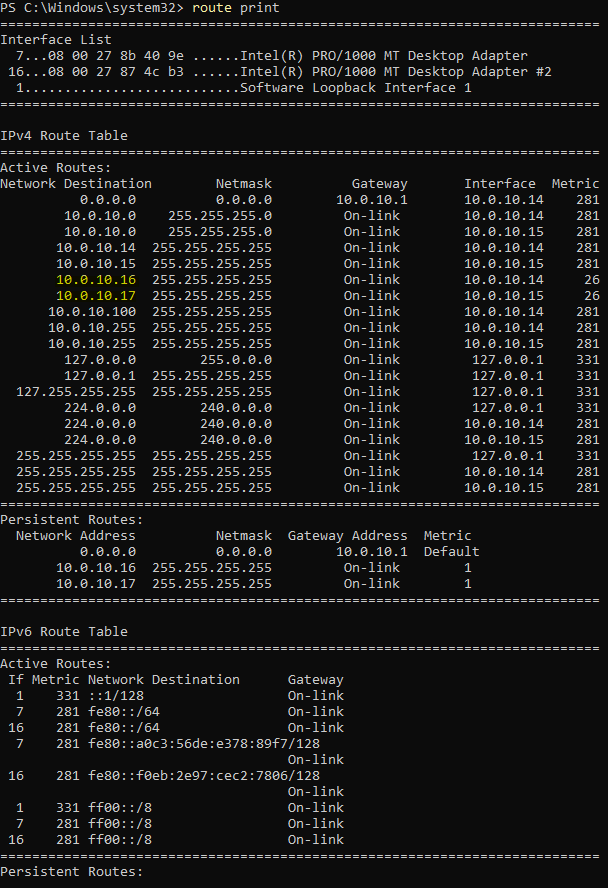
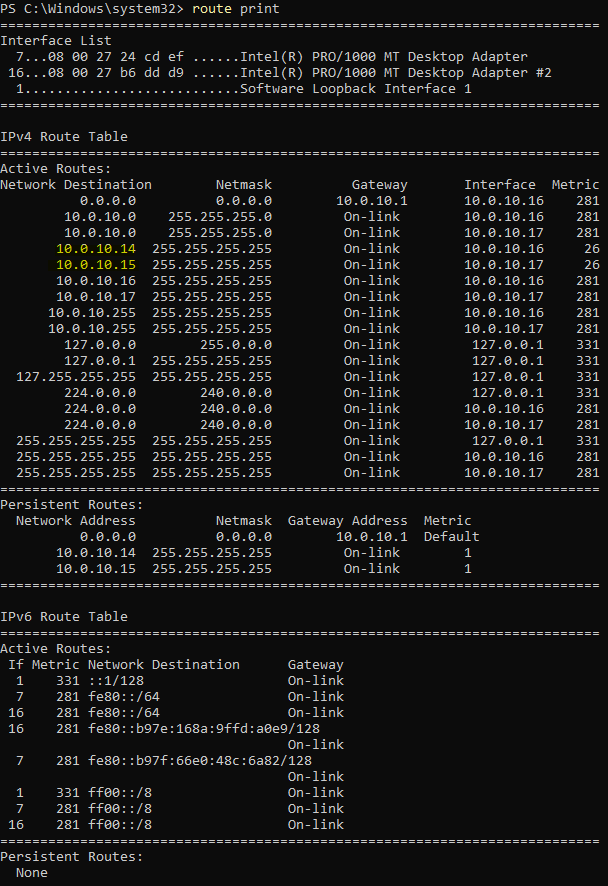
I created persistent /32 host routes.
The logic became:
- Peer Public IP → Always use the Public NIC
- Peer Private IP → Always use the Private NIC
After creating the routes, Windows no longer had to guess.
Communication immediately became stable.
The Cluster Vault Manager recognized the peer correctly.
The Offline status disappeared.
The Switchover button became available again.
Exactly what I wanted.
Verifying the Routes
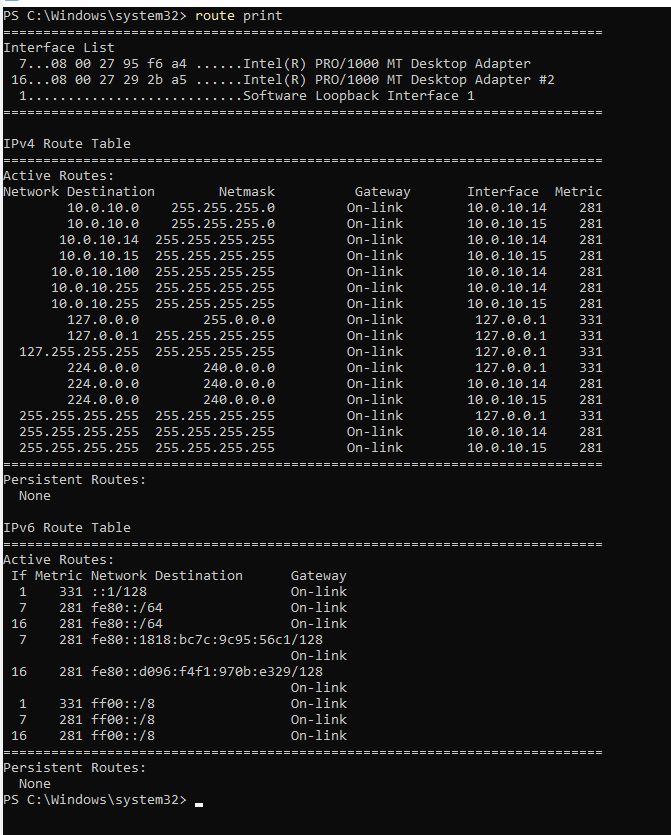
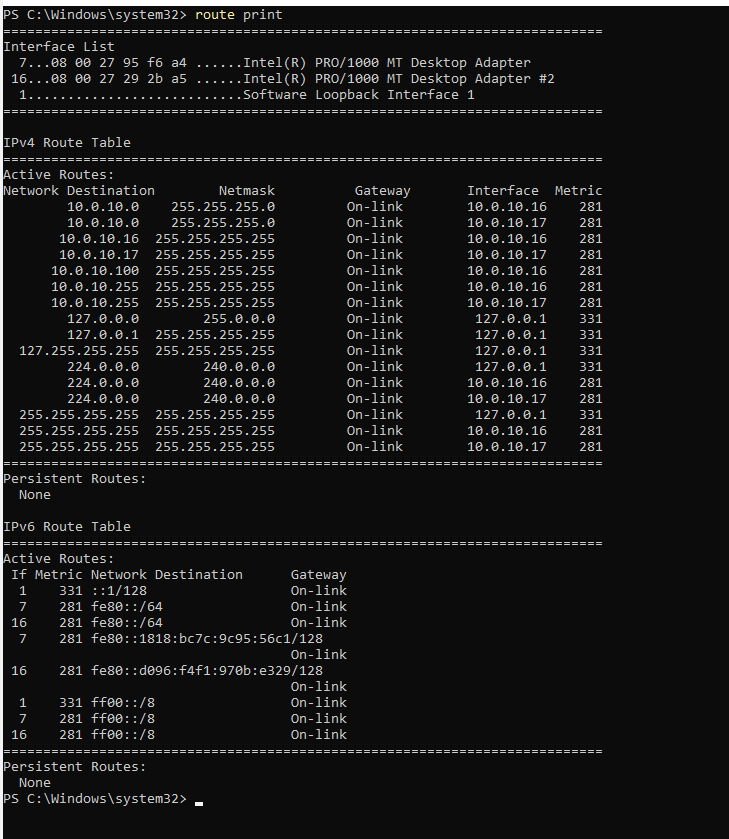
I confirmed the routing table using:
Get-NetRoute
and
route print
Route Print before adding the static routes
Route Print after adding the static routes
Testing Connectivity
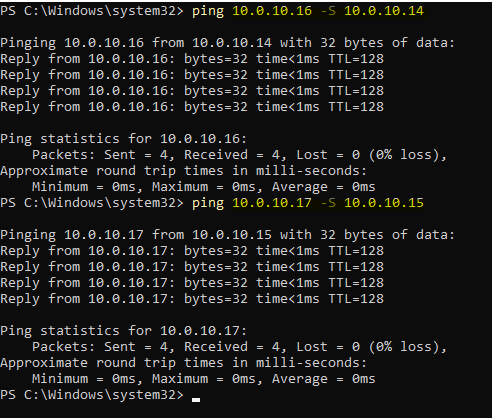
I also forced the source IP during ping tests.
ping 10.0.10.16 -S 10.0.10.14ping 10.0.10.17 -S 10.0.10.15
This confirmed that each destination was using the expected interface.
Successful connectivity test
Why Did This Only Happen After Installing IDIRA?
This was probably the biggest lesson I learned.
IDIRA didn’t break my network.
Instead, the installation introduced a service that depends on predictable network paths.
Before installing the Vault, Windows could make routing decisions automatically.
After installing the Cluster Vault Manager, those automatic decisions were no longer acceptable because heartbeat traffic must always travel through the correct interface.
Once I understood that, the behavior made perfect sense.
Best Practice
If you’re designing a new environment, the best solution is still to use separate subnets.
For example:
- Public Network → 10.0.10.0/24
- Private Network → 192.168.100.0/24
In that scenario, Windows naturally selects the correct interface without requiring static routes.
However, if your lab (or even an existing environment) uses both NICs within the same subnet, persistent host routes are an effective solution.
Final Thoughts
One of the things I enjoy most about building IDIRA labs is that every challenge teaches something new.
This issue reminded me that not every IDIRA problem is actually an IDIRA problem.
Sometimes the software is simply exposing a networking behavior that Windows has quietly tolerated all along.
Understanding why something happens is far more valuable than simply memorizing the fix.
Hopefully, if you ever see your peer node stuck in Offline after installing a Vault Cluster, this article will save you a few hours of troubleshooting.
If you’ve faced similar issues in your IDIRA labs, I’d love to hear about your experience. Every environment teaches us something new, and sharing those lessons is one of the best ways we can help the community grow.

